Getting Started
Install
Requires Python 3.12+.
# With Nix flakes
nix profile install github:skwort/kist

# With uv
uv tool install kist

# With pipx
pipx install kist
Or from source:
git clone https://github.com/skwort/kist.git
cd kist
uv sync
Create a library
kist init -p ~/my-kicad-lib
This opens the init wizard with the path pre-filled. Configure the naming prefix, suppliers, and directory layout, then press Ctrl+S to create the library.
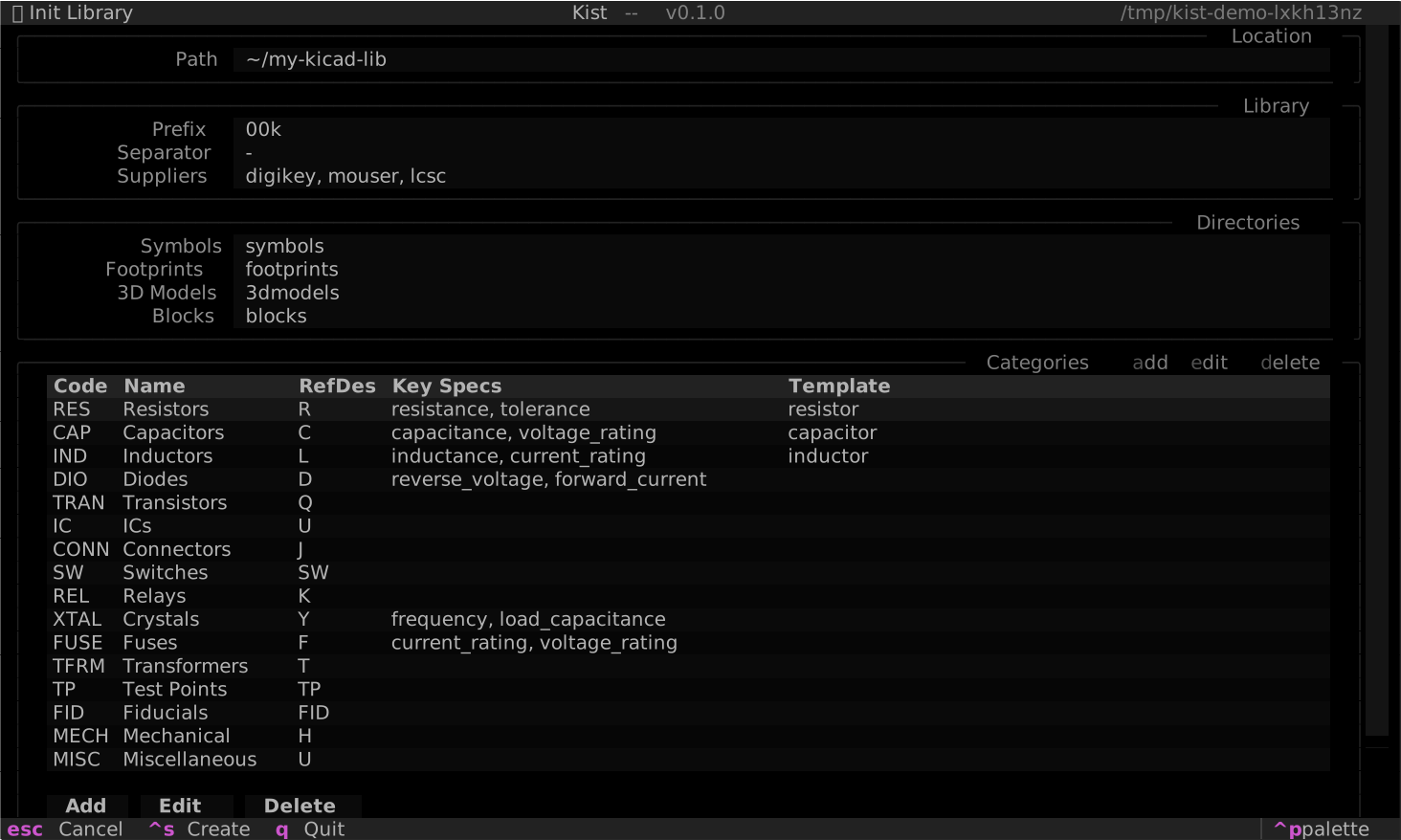
Use --no-tui to skip the wizard and create the library with
defaults:
kist init -p ~/my-kicad-lib --no-tui
This creates a .kist/config.toml, a parts.json database, and asset
directories for symbols, footprints, 3D models, and blocks.
Link a KiCad project
cd ~/my-kicad-project
kist link ~/my-kicad-lib
This writes a kist.toml reference and creates a lib/ symlink
so KiCad can find your symbols via ${KIPRJMOD}/lib/.
Launch the TUI
kist
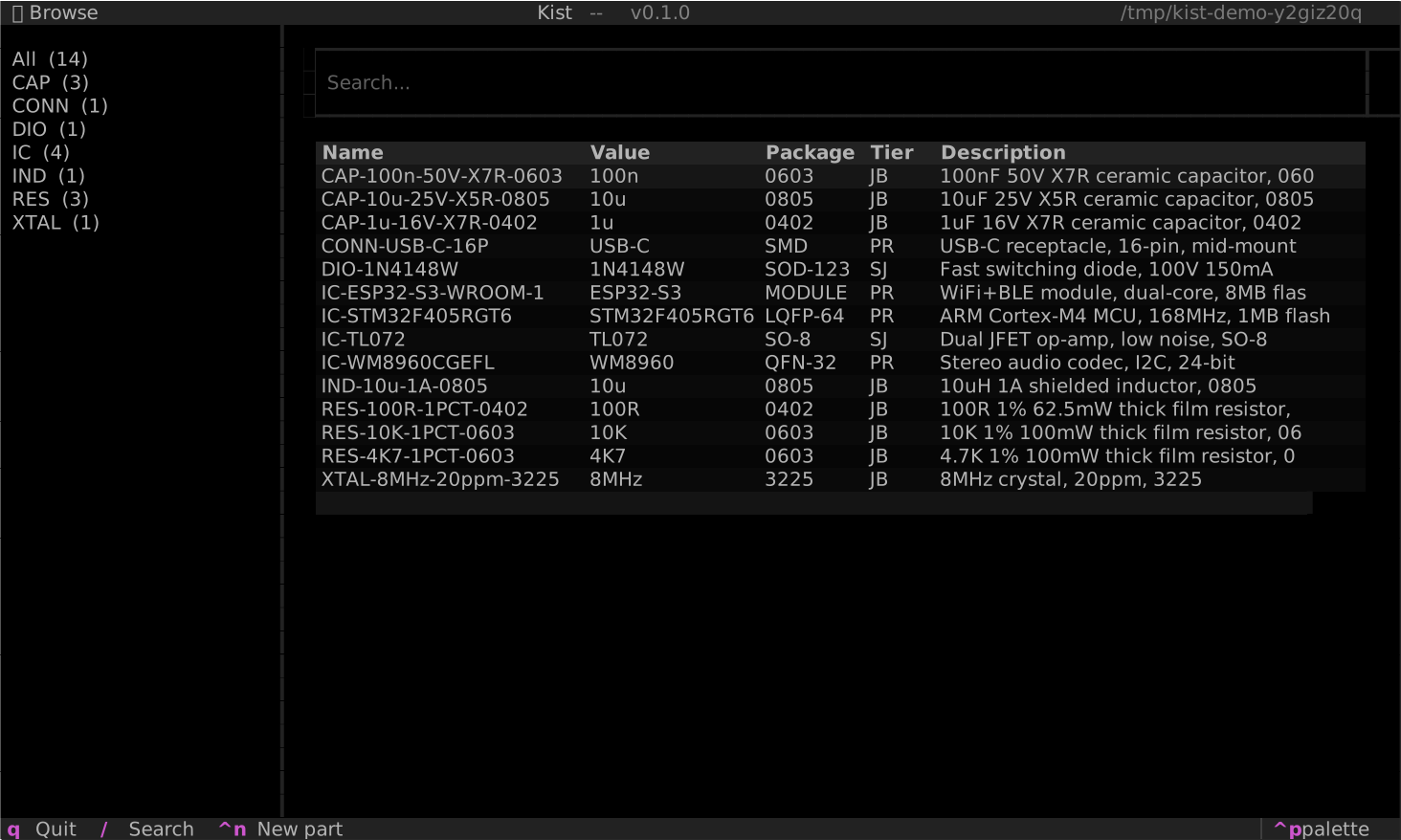
Running kist without a subcommand opens the interactive TUI.
From there you can browse your library, search for parts, and add
new ones.
Add a part
From the TUI, press Ctrl+N to open the add screen. Paste a DigiKey URL or MPN into the input bar and press Enter -- kist fetches the metadata, populates the form, and lets you review before saving.
Fetching from DigiKey requires API credentials. Set them in the TUI settings (Ctrl+,) or in your global config.
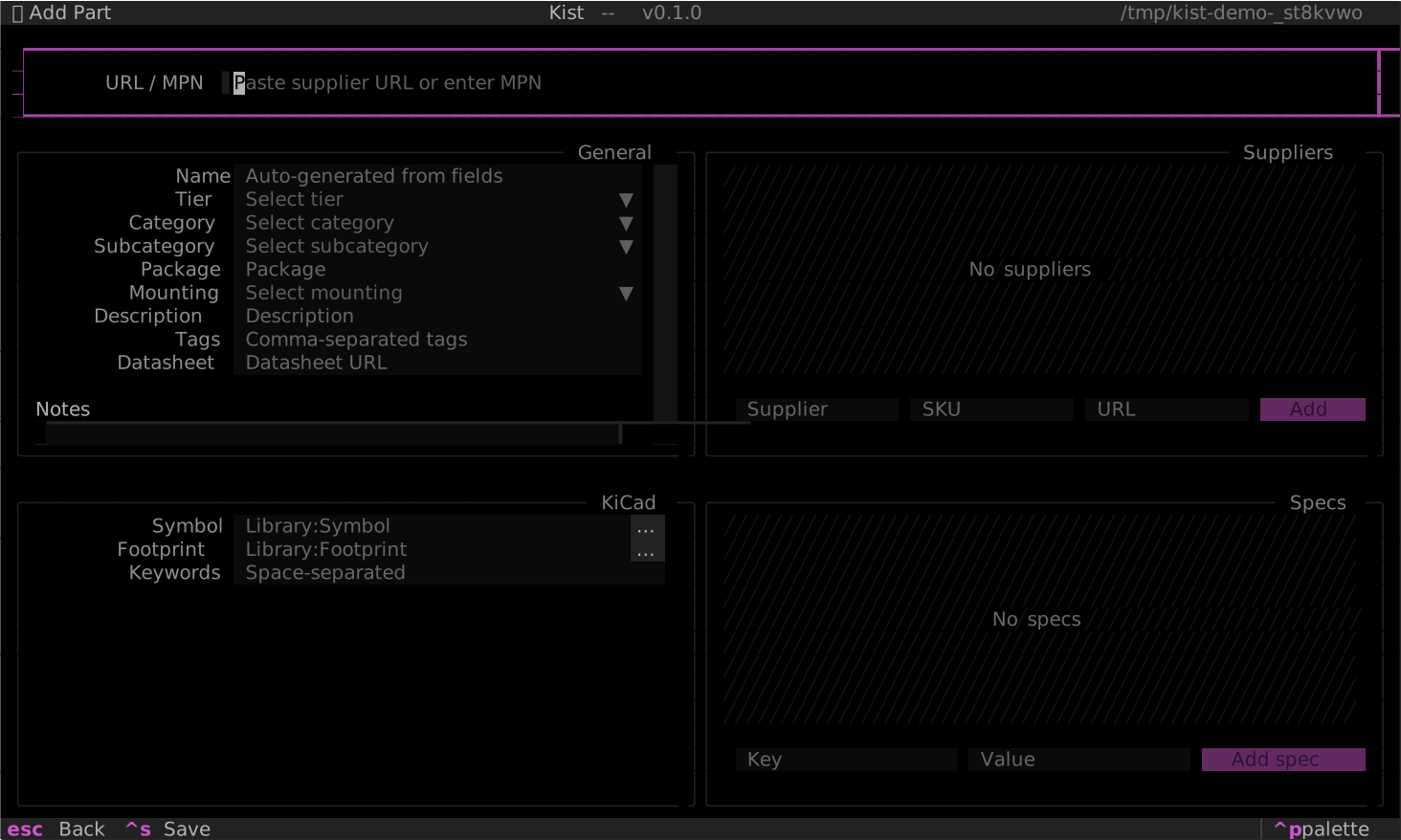
The symbol and footprint fields open a search modal where you can browse your installed KiCad libraries with a live preview. Select an entry to assign it, or press C to clone it into your local library.
Or from the CLI:
kist add https://www.digikey.com/en/products/detail/...
View part details
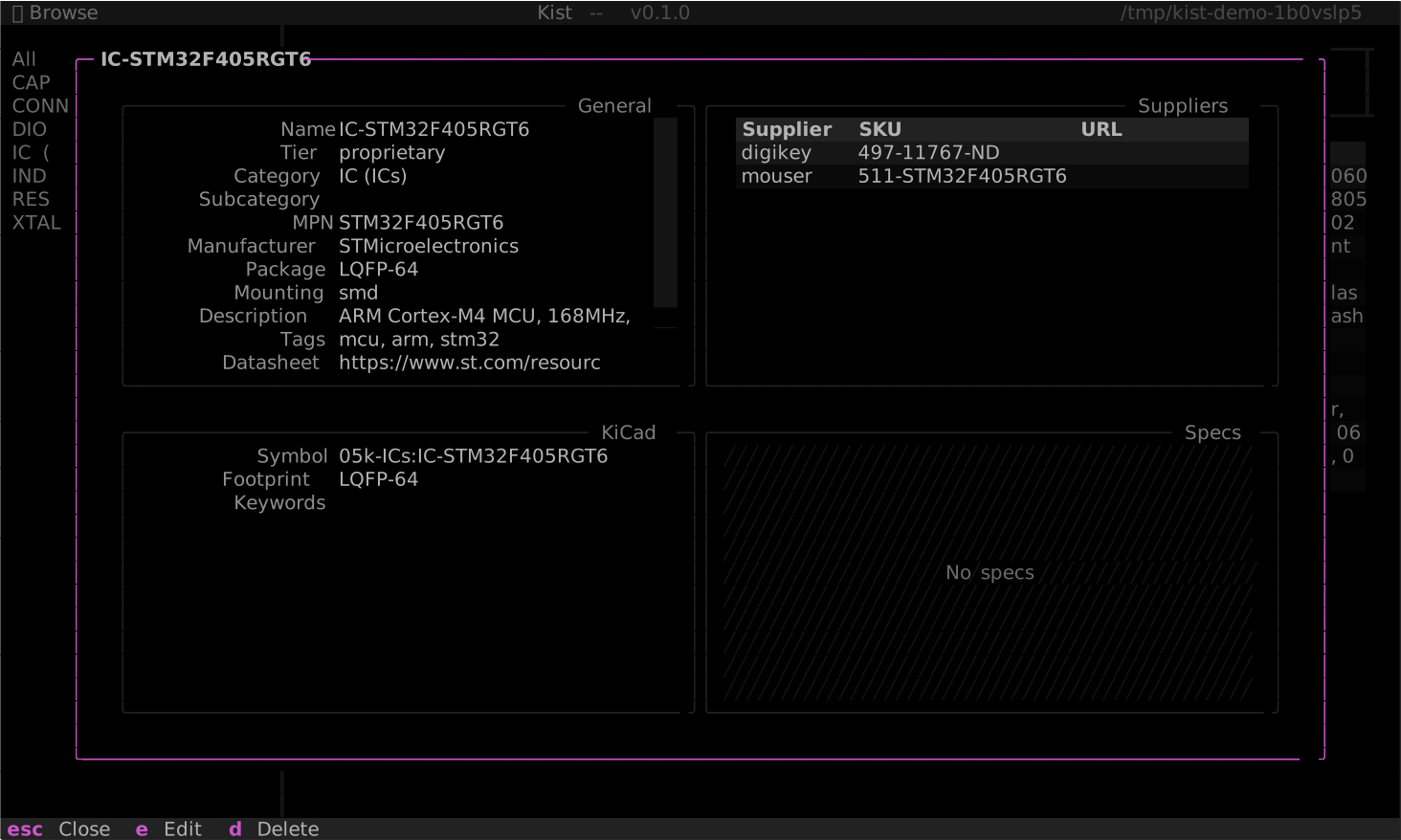
Select a part from the browse screen and press Enter to open the detail modal. From here you can view all metadata, edit fields, or delete the part.
Next steps
- Read Concepts to understand the three-tier part model and library structure.
- See Configuration for config file reference.
- See CLI Reference for all available commands.